Administrator
Logging in for the First time as the Admin
- Open a browser [Google chrome/ Mozilla Firefox/ Safari/ Edge] are officially supported.
Please not that Internet Explorer is currently not supported and it may cause issues with the app. This is also for other browsers not officially tested.
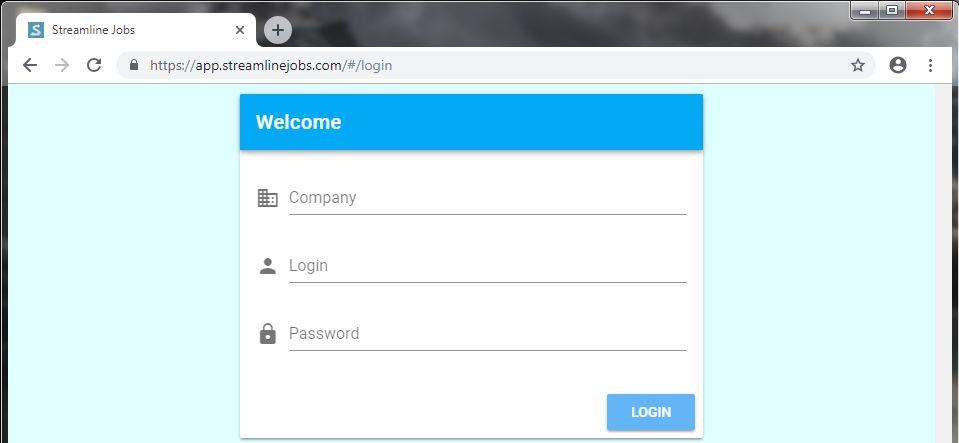
Fill in “app.streamlinejobs.com” in the address bar and press Enter. It will redirect to the secure address https://app.strealinejobs.com

For this first-time login, specify the following: Company Name will automatically be saved for future logins
- Company name This is a unique & specific code, check the invite-Email’s details to confirm your company’s name
- Your user's Login Check the email details - Can be changed later
- Your user's Password Check the email details - Can be changed later
4.Below is an early version of the app’s main page: the Dashboard with the Menu Overlay open on the left. Chrome is offering to save the user’s Password which was used in the previous step to log in
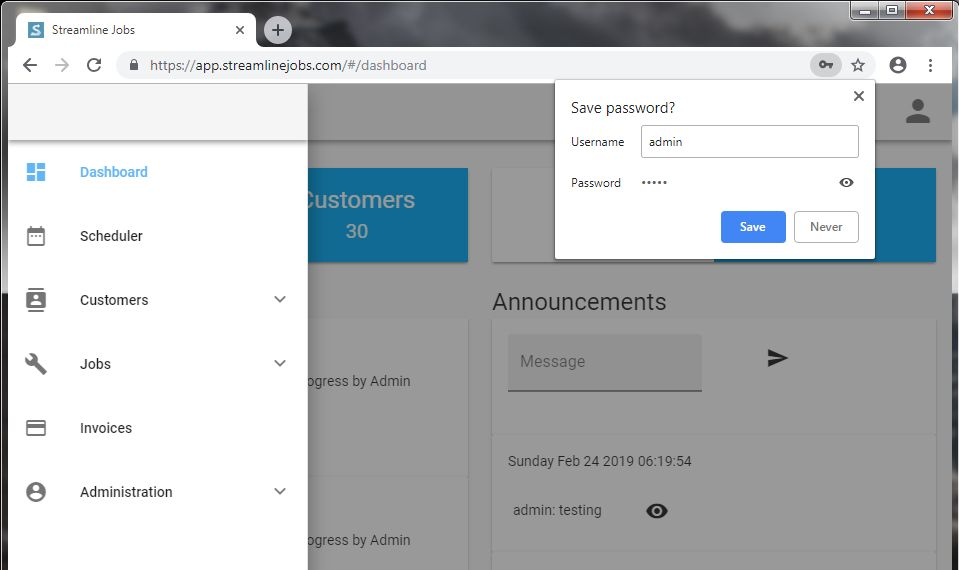
- Begin by clicking the Administration button in the menu on the left, at the bottom, to open the Administrator’s menu. Company / Users / Services / Crew / Inventory
Configuring the App
Select Company to add information about your company to the app. This is the foundation of setting up the app specifically for your company’s needs
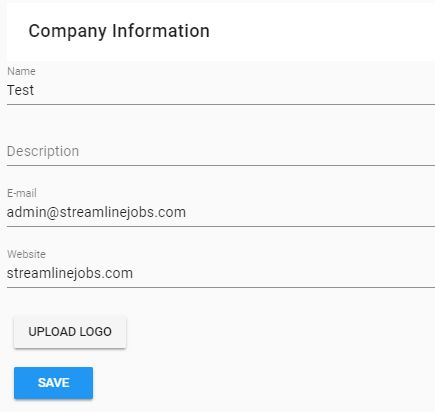
Fill out the information and select Save at the bottom.
To get back to the main menu where the other Administrator Options are, click the 3 lines button (aka Hamburger Button) in the top left corner:

Creating New Users
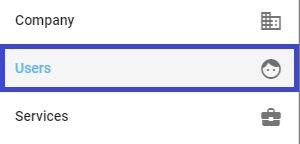
Click on Users to open its menu. The Administrator account already exists, this menu is where all other users are added. [Managers / Employees / Technicians / etc ... ]

Click the New User button in the top right corner to add a new user. For example below, a manager’s profile is being added. Click Save at the bottom to finish adding the new user.
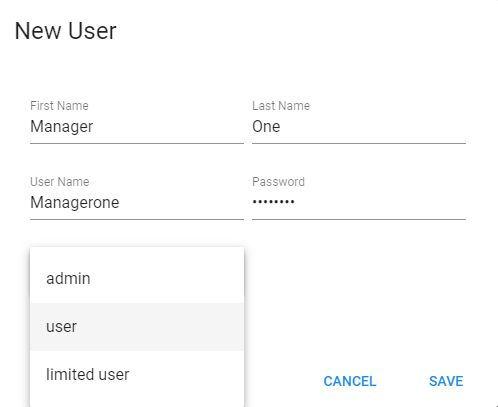
There are 3 types of users available - while creating a new user, select the most appropriate type: * Admin [Full access to the app and all its functions] * (Advanced) User [This user does not have fill access to all the apps functions, but still to most of them] * Limited User _[This user only has basic access to the app to complete their assigned tasks and jobs]
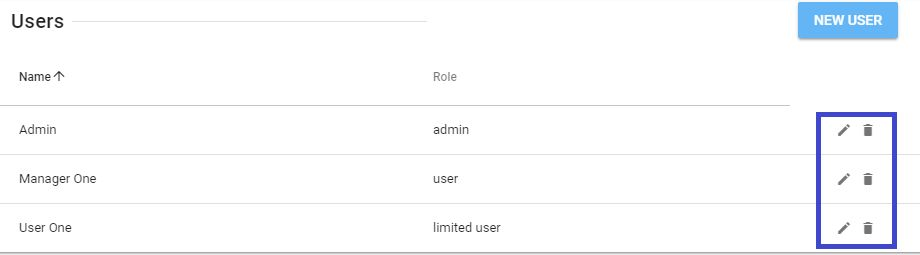
After users are added, they can be found in the list. Using the Action buttons, users can be edited or deleted:
Adding Services
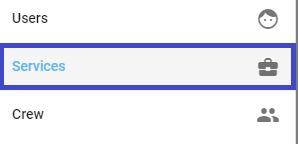
Go back to the Administrator menu and select Services:
For this lawn care example, some services have already been added:
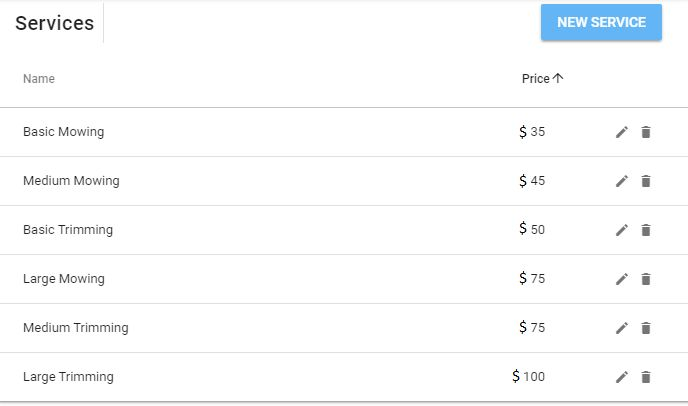
Click the New Service button in top right corner to add a new entry:

Note: The price selected here will not affect final invoices. This is used for estimation purposes only.
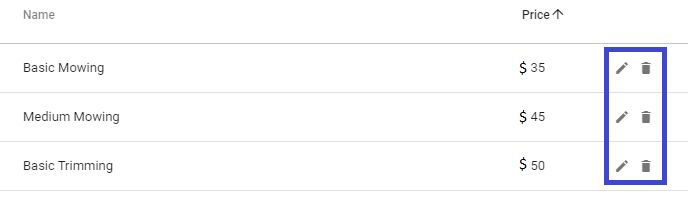
After services are added, they can be found in the list. Using the Action buttons, services can be edited or deleted